Install Tailscale on Ubuntu: A 5-Minute Guide for Non-Technical Users
You want to let someone SSH into your machine for remote technical support, but you're worried about opening port 22 to the public internet. Tailscale is the perfect solution — it creates a secure private network with zero router configuration and zero open ports.
What is Tailscale?
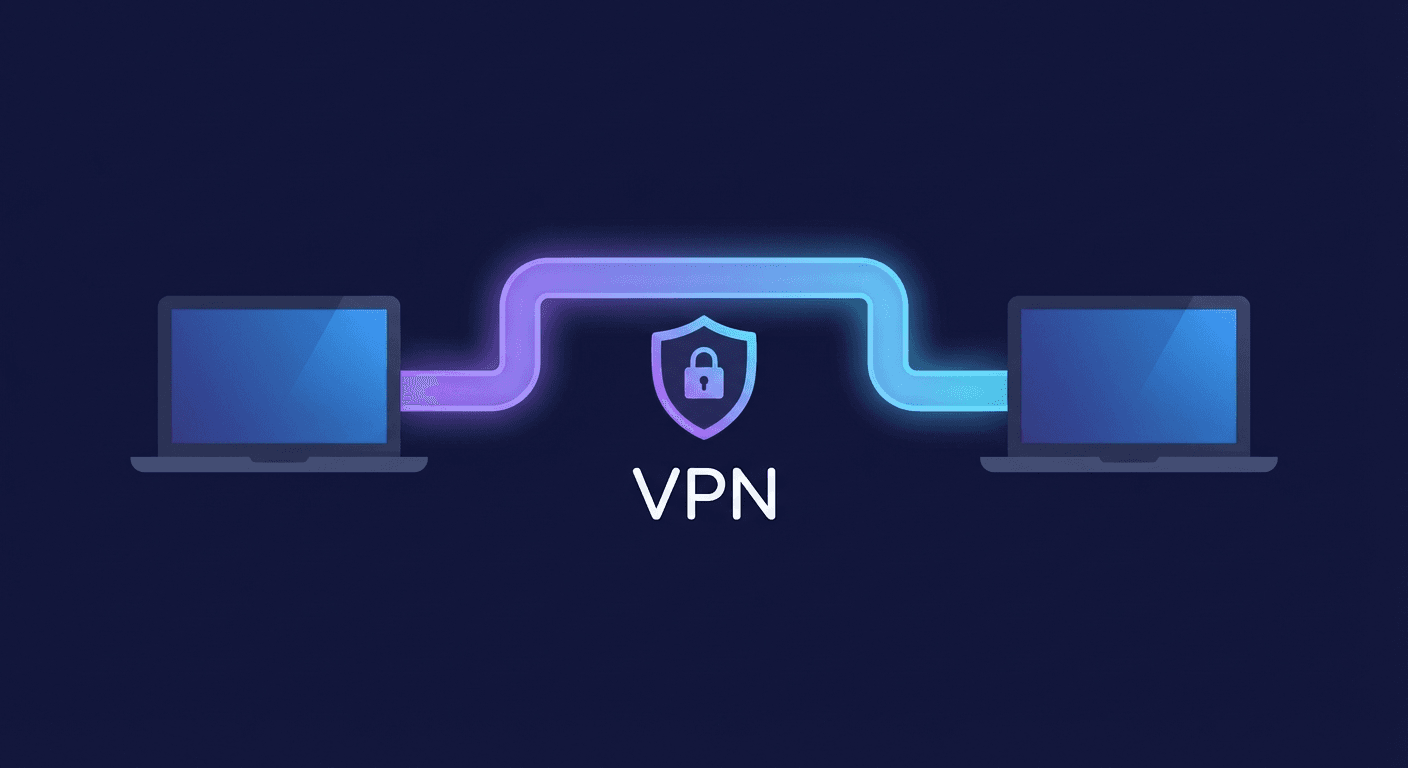
Tailscale turns your devices into a secure private network, no matter where they are in the world. Every device on Tailscale gets its own private IP address (in the 100.x.x.x range) and can connect to each other as if they were on the same home LAN.
Key benefits:
- No port forwarding on your router or firewall
- End-to-end encrypted using WireGuard
- Up and running in minutes — no networking knowledge required
- Free for individuals and small teams (up to 3 users)
Prerequisites
- Ubuntu 18.04 or later
sudo (administrator) access- A free Tailscale account — sign up at tailscale.com
Step 1: Install Tailscale
Open Terminal and run this command. It automatically downloads and installs the correct version for your Ubuntu:
curl -fsSL https://tailscale.com/install.sh | sh
Wait 30–60 seconds. When the Terminal returns to the normal prompt without any red error messages, installation is complete.
Step 2: Activate and Log In
Start Tailscale with:
sudo tailscale up
Terminal will display a link like this:
To authenticate, visit:

	https://login.tailscale.com/a/xxxxxxxxxxxxxxxxxx
Copy that link and paste it into your web browser. Sign in with Google, Microsoft, or GitHub. Once authenticated in the browser, return to Terminal — you'll see a success message.
Important: The person supporting you (e.g., Tuan) also needs Tailscale installed on their machine. To connect to each other, both devices need to be on the same Tailscale network — either by using the same account or by using the "Share device" feature in the Tailscale admin console.
Step 3: Get Your Tailscale IP Address
tailscale ip -4
This returns an IP address like:
100.64.0.1
Send this IP address to the person who will support you. This is what they'll use to SSH into your machine.
Step 4: Your Support Person SSHes In
Once both devices are connected to Tailscale, they simply run:
ssh [email protected]
Replace your-username with your Ubuntu username (the name shown before @ in your Terminal prompt), and 100.x.x.x with the IP from Step 3.
Why Is This Safer Than Opening Port 22?
| Exposing port 22 publicly | Using Tailscale |
|---|
| Bots scan and probe 24/7 | Port is invisible to the outside world |
| Vulnerable to brute-force attacks | WireGuard end-to-end encryption |
| Complex firewall rules needed | Zero-config, never touch the router |
| High risk with weak passwords | Authentication via trusted identity provider |
Troubleshooting
tailscale command not found after installing?
Close and reopen Terminal. Or run it with the full path:
/usr/bin/tailscale ip -4
Can't SSH even though Tailscale is connected?
Check if the SSH server is running:
sudo systemctl status ssh
If it shows inactive, enable it:
sudo systemctl start ssh
sudo systemctl enable ssh
Tailscale doesn't start after reboot?
Enable it as a system service:
sudo systemctl enable tailscaled
Quick Reference — 3 Commands to Remember
curl -fsSL https://tailscale.com/install.sh | sh
sudo tailscale up
tailscale ip -4
With just 3 commands, you have a fully secure SSH connection without touching any network or router configuration. This is how Autonow sets up remote access for all clients who need technical support.
Interested in automation tools that also benefit from secure remote access? Check out our comparison of n8n vs Zapier vs Make or learn how OpenClaw enables self-hosted AI.